Chroma Orbit: A ring of light for your mark.
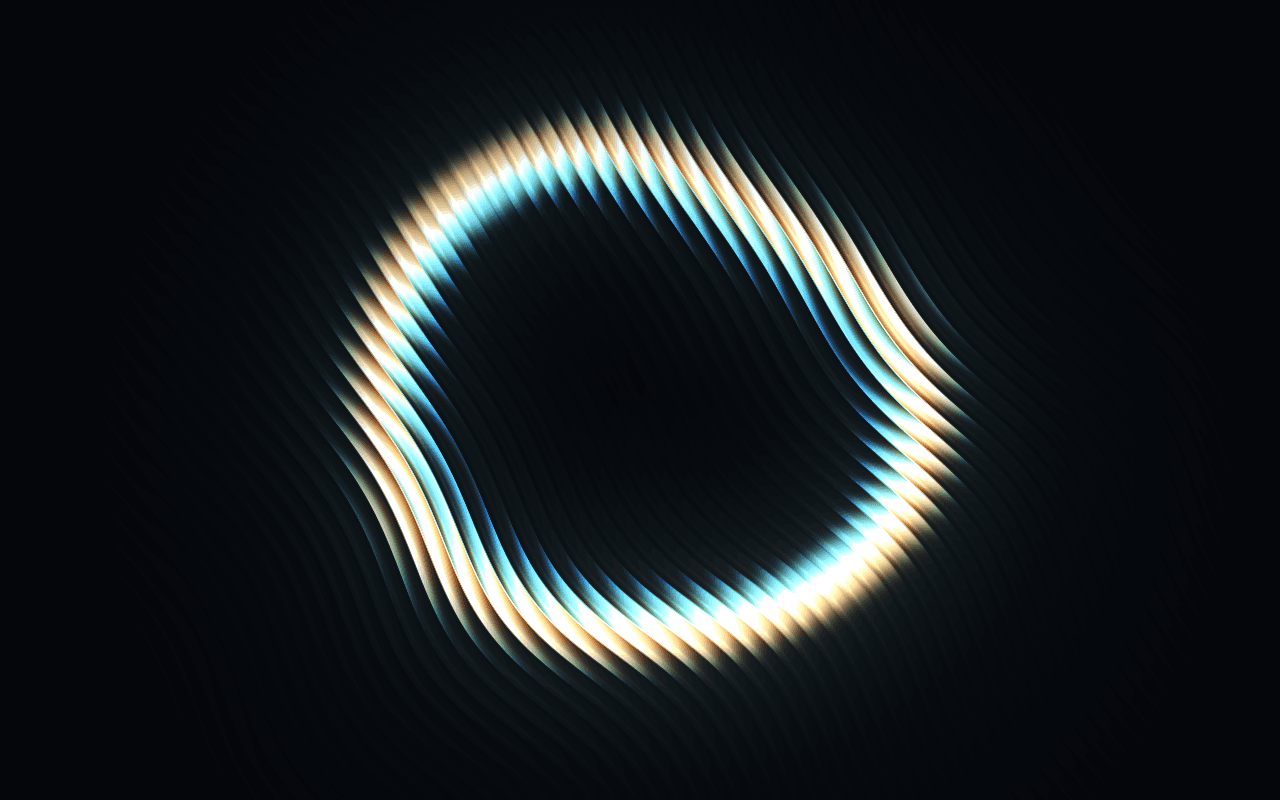
A WebGPU light-ring background for React: paired lights turn round a dark disc and throw shimmering cones of color outward, leaving the middle for your logo.
Part of the Free collection for Aperveil 1.0. Public live preview and Color Looks are open. Free Export Kits do not require an account. Purchasing is not available yet.
Color Looks
THE SYSTEM BEHIND THE SURFACE
Inside Chroma Orbit.
Chroma Orbit turns eight paired lights round a dark disc. Each throws a cone of color outward that widens as it goes and, toward its far end, breaks into thin shafts that bend and shimmer. The color belongs to the place on the ring, so a light takes on blue, magenta, orange and green as it passes, and the colors drift very slightly over time. A broad wave of light goes slowly round the ring, so no light blinks on or off. The pointer lights the ring: inside it every light comes up, outside it the lights on its side.
Chroma Orbit draws its own ring of lights; it does not place or animate your logo, and it is not a particle system or a physical light simulation.
4.391 ms GPU timestamp median; p95 8.651 ms. 1440x900 @ dpr 1.5; Apple M2 (8-core GPU), Metal driver on macOS Version 26.6.2 (Build 25G83); measured 2026-10-16. This is a recorded headless sample, not a browser FPS or mobile-performance guarantee.
Position
Where the ring sits in the frame.
Radius
The ring's radius, in frame heights.
Lights
How many paired lights stand round the ring.
Pair spacing
How far apart the two cores of each light are.
Color Looks preserve these settings. Open the editor for all 20 controls.
KEEP THE SOURCE. KEEP THE CONTROL.
From preview to your project.
Choose a Look, tune it in the editor, then download the Export Kit. Install the runtime and copy the generated component into your project.
Every control in the editor is a typed prop. Leave a prop out to keep the value you exported; change one and the running shader updates without restarting. Give the surface a size and pass fallback for browsers without WebGPU.
The component is already marked "use client": in Next.js, import it into any page or layout and give its container an explicit size. Keep headings, links and accessible content in HTML above the decorative canvas.
Part of the Free collection for Aperveil 1.0. Public live preview and Color Looks are open. Free Export Kits do not require an account. Purchasing is not available yet.
Open editor & exportUsage example — download ChromaOrbit.tsx from the editor first. This example imports that local file; it is not the shader component itself.
Add it with npx @aperveil/cli add shader chroma-orbit, or download the Export Kit from the editor and copy the component into your project.
Usage example for vue/ChromaOrbit.vue from the Export Kit. Vue 3.5 or newer, Nuxt included: it renders an empty canvas on the server and starts in the browser, so it needs no <ClientOnly>.
Same props and values as the React component.
Usage example for html/aperveil-chroma-orbit.js from the Export Kit. No install and no build step: keep the two files of the kit's html folder together.
Same props and values as the React component.
Download aperveil-shader-chroma-orbit.zip from the editor: Install, then WordPress. WordPress 6.5 or newer: a plugin with a block that holds your own content in front of the shader, and a shortcode for page builders.
The values you choose in the editor are baked into the plugin.
Copy ChromaOrbit.tsx from the editor: Install, then Framer. It opens on the values you chose.
- In Framer, open Assets, then Code, and add a new code file named ChromaOrbit.
- Replace its sample code with your copy and save.
- Drag Chroma Orbit onto the canvas. Its Color Looks and every control are in the property panel.
The same controls as the React component, in Framer's panel. Framer guide
| Prop | Type | Default | What it does |
|---|---|---|---|
| colorA | `#${string}` | "#148eff" | Right. The color of the wheel to the right of the ring. Accepts #RRGGBB. |
| colorB | `#${string}` | "#3f14ff" | Upper right. The color of the wheel up and to the right. Accepts #RRGGBB. |
| colorC | `#${string}` | "#ff1443" | Upper left. The color of the wheel up and to the left. Accepts #RRGGBB. |
| colorD | `#${string}` | "#ffa514" | Left. The color of the wheel to the left. Accepts #RRGGBB. |
| colorE | `#${string}` | "#c4ff14" | Lower left. The color of the wheel down and to the left. Accepts #RRGGBB. |
| colorF | `#${string}` | "#14ffc4" | Lower right. The color of the wheel down and to the right. Accepts #RRGGBB. |
| background | `#${string}` | "#000000" | Background. The ground behind the ring. Accepts #RRGGBB. |
| position | readonly [number, number] | [0.514, 0.586] | Position. Where the ring sits in the frame. Accepts x 0–1, y 0–1. |
| radius | number | 0.358 | Radius. The ring's radius, in frame heights. Accepts 0.1–0.7, step 0.001. |
| lights | number | 8 | Lights. How many paired lights stand round the ring. Accepts 3–16, step 1. |
| pairSpacing | number | 0.039 | Pair spacing. How far apart the two cores of each light are. Accepts 0–0.12, step 0.001. |
| litArc | number | 160 | Lit arc. How much of the ring is lit at a time, in degrees. Accepts 20–360, step 1. |
| coneWidth | number | 1 | Cone width. How widely each light's cone spreads outward. Accepts 0.3–2.5, step 0.01. |
| glow | number | 1 | Glow. How bright the cones of light are. Accepts 0–3, step 0.01. |
| coreSize | number | 1 | Core size. How large the bright cores are. Accepts 0.4–2.5, step 0.01. |
| beams | number | 1 | Beams. How far each cone breaks into thin, shimmering shafts toward its far end. Accepts 0–2, step 0.01. |
| flowSpeed | number | 1 | Speed. How fast the lights turn and the lit arc sweeps round. Accepts 0–3, step 0.01. |
| interaction | number | 0.7 | Pointer pull. How strongly the pointer lights the ring: inside it every light comes up, outside it the lights on its side. Accepts 0–1, step 0.01. |
| opacity | number | 1 | Opacity of the whole effect, background included. It is applied inside the shader; do not fade the element again in CSS. Accepts 0–1, step 0.01. |
| backgroundOpacity | number | 1 | Background opacity. Fade the background independently for transparent overlays. Accepts 0–1, step 0.01. |
| className | string | — | Size and place the surface. The canvas fills this box, so give it a width and a height. |
| style | CSSProperties | — | Inline styles for the surface box. |
| paused | boolean | false | Holds the current frame. Use it for a pause control or for sections scrolled out of view. |
| fallback | ReactNode | null | Shown instead of the canvas without WebGPU. Also shown if rendering fails. A poster image or a CSS gradient works well. |
| onReady | () => void | — | The first frame has been drawn. |
| onError | (error: unknown) => void | — | Rendering failed; the fallback is shown. |
- colorA · `#${string}` = "#148eff"
- Right. The color of the wheel to the right of the ring. Accepts #RRGGBB.
- colorB · `#${string}` = "#3f14ff"
- Upper right. The color of the wheel up and to the right. Accepts #RRGGBB.
- colorC · `#${string}` = "#ff1443"
- Upper left. The color of the wheel up and to the left. Accepts #RRGGBB.
- colorD · `#${string}` = "#ffa514"
- Left. The color of the wheel to the left. Accepts #RRGGBB.
- colorE · `#${string}` = "#c4ff14"
- Lower left. The color of the wheel down and to the left. Accepts #RRGGBB.
- colorF · `#${string}` = "#14ffc4"
- Lower right. The color of the wheel down and to the right. Accepts #RRGGBB.
- background · `#${string}` = "#000000"
- Background. The ground behind the ring. Accepts #RRGGBB.
- position · readonly [number, number] = [0.514, 0.586]
- Position. Where the ring sits in the frame. Accepts x 0–1, y 0–1.
- radius · number = 0.358
- Radius. The ring's radius, in frame heights. Accepts 0.1–0.7, step 0.001.
- lights · number = 8
- Lights. How many paired lights stand round the ring. Accepts 3–16, step 1.
- pairSpacing · number = 0.039
- Pair spacing. How far apart the two cores of each light are. Accepts 0–0.12, step 0.001.
- litArc · number = 160
- Lit arc. How much of the ring is lit at a time, in degrees. Accepts 20–360, step 1.
- coneWidth · number = 1
- Cone width. How widely each light's cone spreads outward. Accepts 0.3–2.5, step 0.01.
- glow · number = 1
- Glow. How bright the cones of light are. Accepts 0–3, step 0.01.
- coreSize · number = 1
- Core size. How large the bright cores are. Accepts 0.4–2.5, step 0.01.
- beams · number = 1
- Beams. How far each cone breaks into thin, shimmering shafts toward its far end. Accepts 0–2, step 0.01.
- flowSpeed · number = 1
- Speed. How fast the lights turn and the lit arc sweeps round. Accepts 0–3, step 0.01.
- interaction · number = 0.7
- Pointer pull. How strongly the pointer lights the ring: inside it every light comes up, outside it the lights on its side. Accepts 0–1, step 0.01.
- opacity · number = 1
- Opacity of the whole effect, background included. It is applied inside the shader; do not fade the element again in CSS. Accepts 0–1, step 0.01.
- backgroundOpacity · number = 1
- Background opacity. Fade the background independently for transparent overlays. Accepts 0–1, step 0.01.
- className · string
- Size and place the surface. The canvas fills this box, so give it a width and a height.
- style · CSSProperties
- Inline styles for the surface box.
- paused · boolean = false
- Holds the current frame. Use it for a pause control or for sections scrolled out of view.
- fallback · ReactNode = null
- Shown instead of the canvas without WebGPU. Also shown if rendering fails. A poster image or a CSS gradient works well.
- onReady · () => void
- The first frame has been drawn.
- onError · (error: unknown) => void
- Rendering failed; the fallback is shown.
Every prop is optional. Numbers are clamped to their range; an invalid value keeps the default.
THE SURFACE IN CONTEXT
Made for a real interface.
Frame a logo, a product shot or an event date: put the mark in the dark middle of the ring and let the color turn around it, on a dark page.

A night of light and sound
Doors open at dusk.
An illustrative event page with the ring of lights framing the date.
An illustrative layout. Your content stays in HTML; the shader sets the atmosphere.
Try this surface in the editorA FEW USEFUL DETAILS
Before you ship.
What this surface does, where it fits, and where it stops.
ANOTHER WAY TO SEE IT
Keep exploring.

YOUR COLORS. YOUR CONTEXT.